
Philter Desktop 1.2.0 Adds ITIN and SIN Detection and Keep-Last-4 Redaction
Philter Desktop 1.2.0, the offline redaction app for Windows, is out today with two additions that matter for anyone redacting financial and tax documents. It finds two more kinds of identification numbers, the U.S. ITIN and the Canadian Social Insurance Number, and it gives you far more control over what replaces a value once it has been found. The one most people will reach for first is keeping the last four digits of a credit card number.
As before, Philter Desktop is free for personal, non-commercial use. Commercial use is $199 per user per year, which covers the official signed build and direct support. Existing installs will let you know the update is available, and you can also download it now. Version 1.2.0 will be in the Microsoft Store in a couple of days.
ITINs and Canadian SINs
An Individual Taxpayer Identification Number is what the IRS issues to people who need to file U.S. taxes but cannot get a Social Security number. It is nine digits written in the same 3-2-4 shape as an SSN, starting with a 9, so a value like 912-70-1234. Tax returns, payroll records, and loan files for clients with ITINs carry them in exactly the places you would expect to find an SSN, but the SSN filter deliberately skips numbers that begin with 9 because no SSN does, so until now an ITIN could pass straight through.
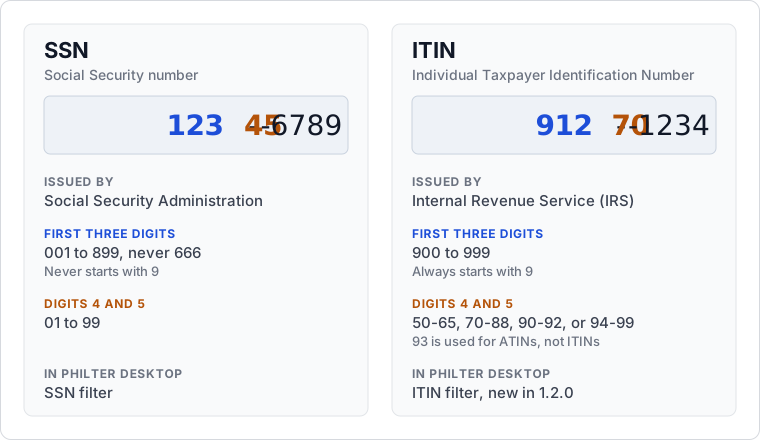
By default the ITIN filter matches anything shaped like 9XX-XX-XXXX. There is an option in the Policy Editor to match only the ranges the IRS actually issues, which also leaves out ATINs (the adoption numbers that begin with 93). I left that option off by default on purpose. If the IRS opens a new range next year, a strict filter would quietly stop catching those numbers, and in redaction a missed value costs more than an extra box over something harmless.
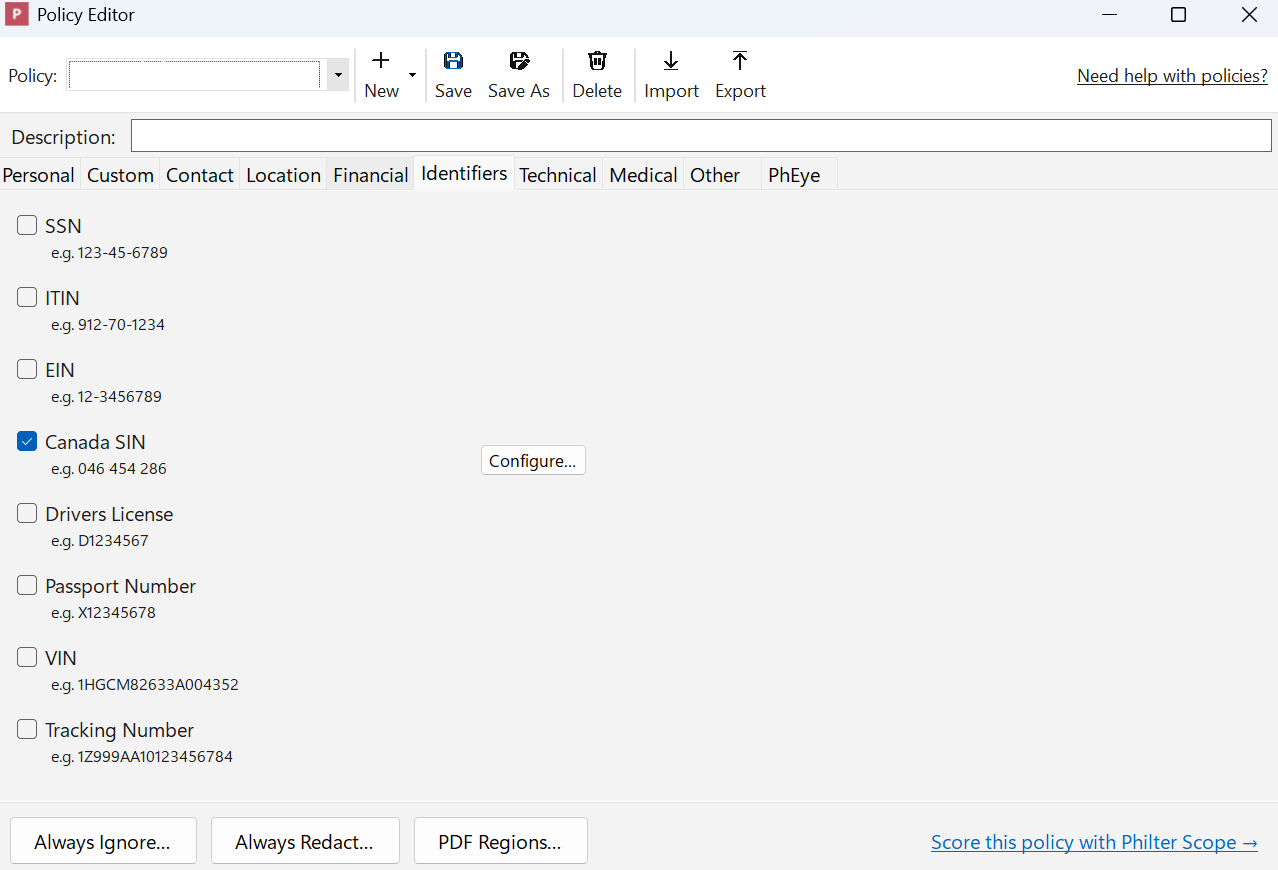
The Canadian SIN is also nine digits, usually written as 046 454 286. Every valid SIN carries a check digit, and the filter only matches numbers that pass it, which keeps a random nine-digit order number from being treated as a SIN. The flip side is that a SIN someone mistyped will not be caught, so keep that in mind for documents that were keyed in by hand. There is also an option to skip numbers beginning with 0 or 8, since neither is issued to a person (8 is used for business numbers). It is off by default for the same reason as the ITIN option. Both filters are under Identifiers in the Policy Editor, next to SSN and EIN.
More choices for what replaces a value
Until now a filter in Philter Desktop could do three things with a value it found. It could swap in a label like {{{REDACTED-credit-card}}}, replace it with fixed text, or replace it with a realistic made-up value. Those still cover most documents, but they are blunt when the person reading the redacted copy needs some of the value to do their job. A support agent confirming which card is on file, or an auditor matching a statement to a ledger, needs the last four digits and nothing else. Version 1.2.0 offers every strategy supported by the Phileas engine underneath it, and the figure below shows four of them applied to the same card number.
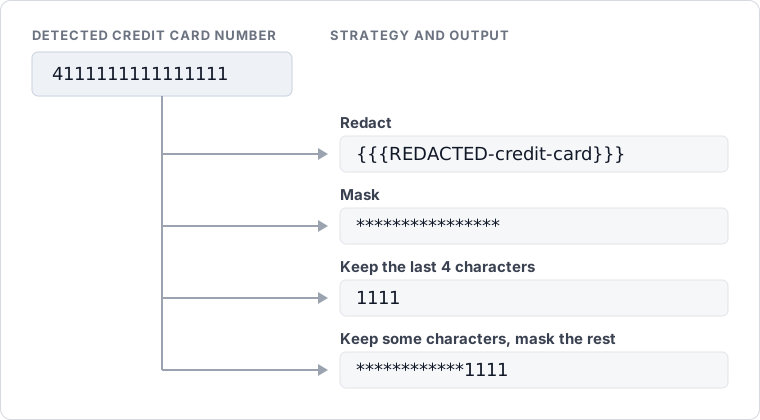
Keep the last 4 characters replaces the whole value with just those four, so the card number becomes 1111 and the text around it gets shorter. Keep some characters, mask the rest holds the value at its original length and masks everything except the characters you choose to keep, at either the start or the end. If the output is going into a statement or a fixed-width export where columns need to line up, the second one is usually what you want.
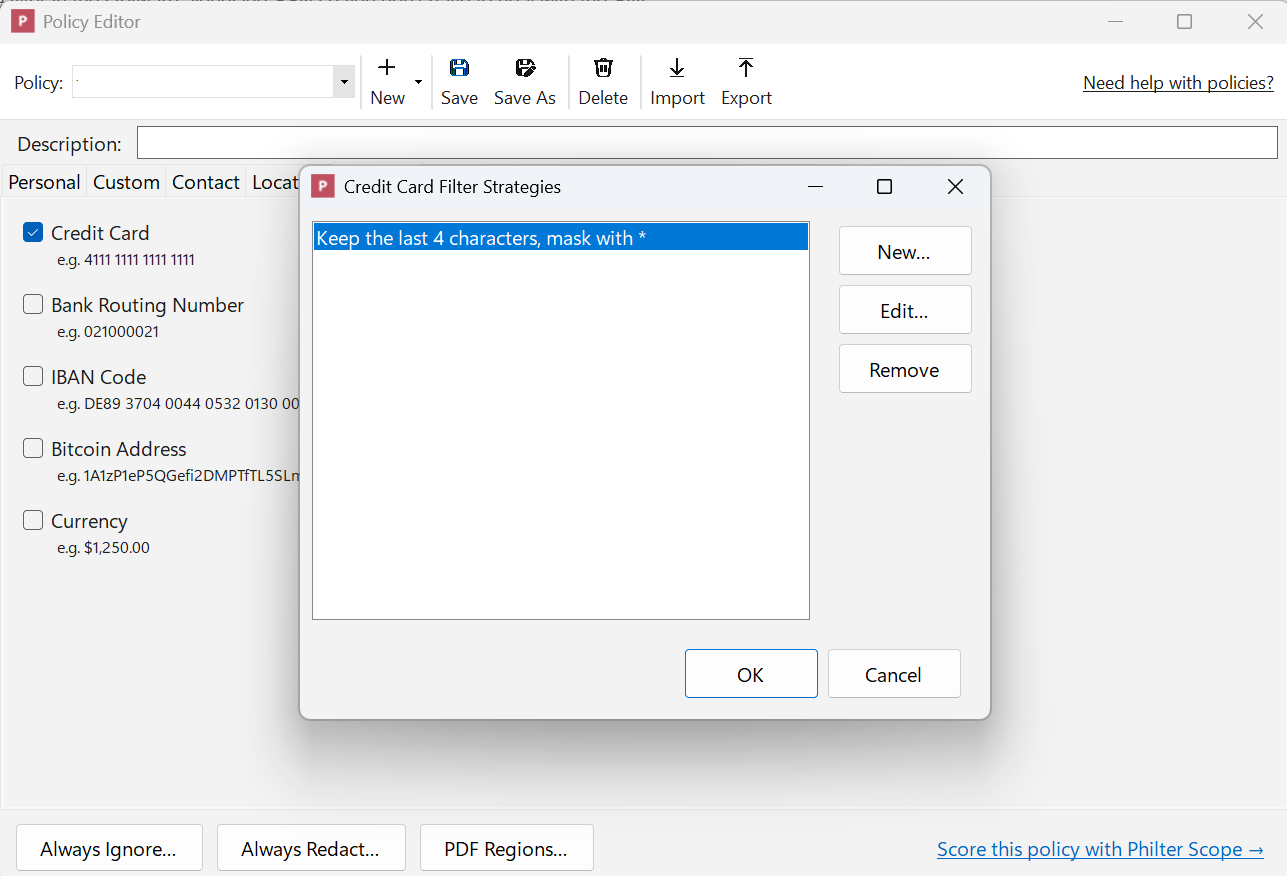
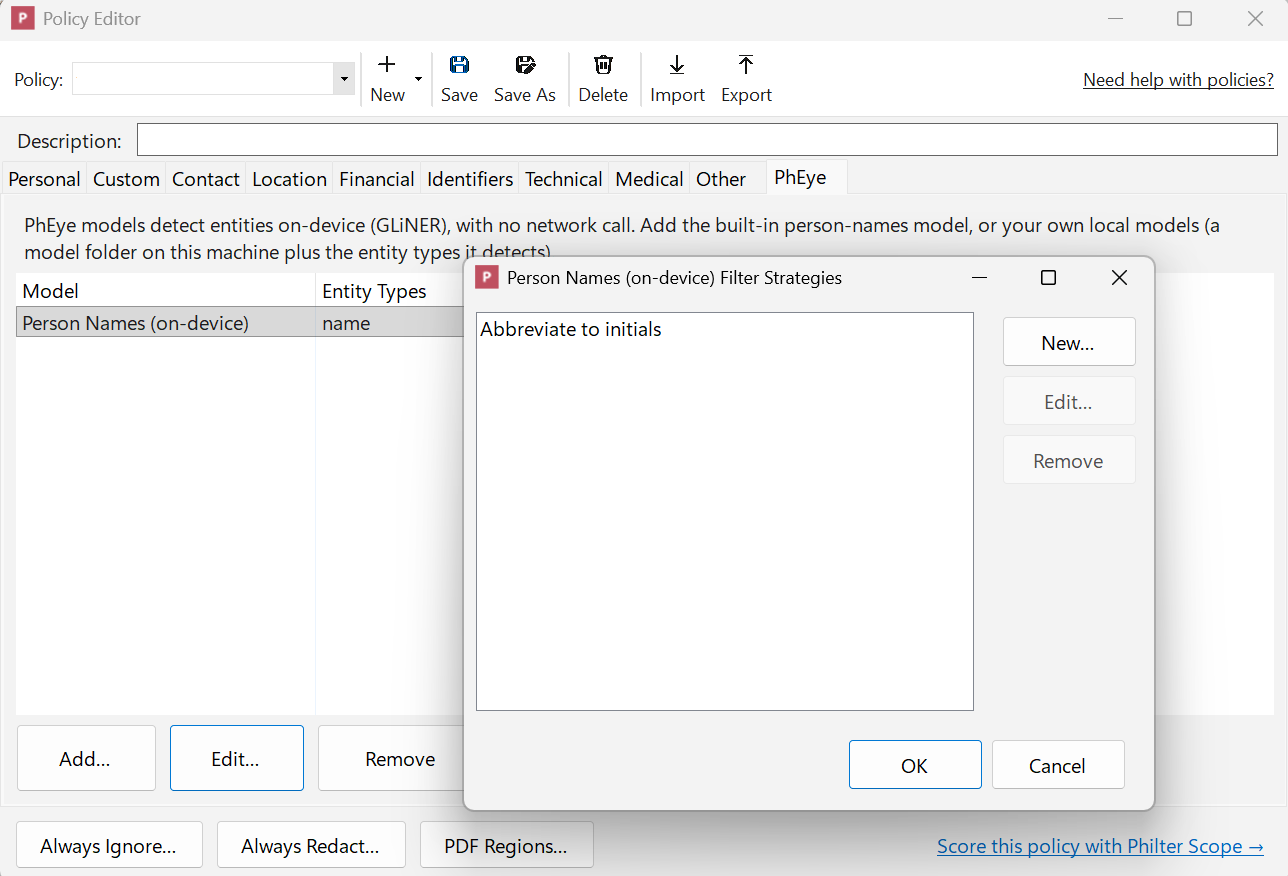
Mask replaces every character, either at the original length or a fixed one. Abbreviate turns a name into initials. Hashing replaces a value with its SHA-256 hash, so the same value always comes out the same way and you can still match records across documents without seeing what they were, and an optional random salt turns that off. There are two encryption strategies, one of which keeps the format so an encrypted card number still looks like a card number. The key never goes into the policy file, because you name an environment variable that holds it instead, and if that variable is not set on the machine, redaction stops with an error rather than leaving the value in place. Dates get three of their own, which are shifting by a fixed or random amount, describing the date relative to today, and keeping only the year.
Strategies control the replacement text in Word, text, rich text, spreadsheet, and email files. A redacted PDF is flattened to an image with a solid box over each detected value, so whichever strategy you pick, a PDF still gets the box.
Fixes that change what you should do
Most of the fixes in this release are the kind you notice only because something stops being annoying. Dialogs now lay out properly at display scaling above 100%, previews no longer run lines together, and redacting a file that is still open in another program now explains that you need to close it first. Find & Redact terms also accept a * wildcard now, the same way Always Redact already did.
A more important fix is that earlier versions could miss a value that sat directly next to a line break or a tab in Word documents and text files. Because of that, a Word document you redacted with an earlier version may still contain something the new version would catch. If you have redacted Word documents you have not shared yet, run them through again.
Detection is probabilistic, and no automated pass should be the last step before a document leaves your hands. Try the new filters against your own documents before relying on them, and use the side by side review and the re-scan to check the output. The full release notes list everything else that changed.